Guide
GEDCOM Relationship Report
Create relationship reports from a GEDCOM file exported from Gramps, using any person in the file as the proband.
Overview
GEDCOM Relationship Report is a Python-based tool that shows the relationship and relationship path from a selected proband to people in the proband’s biological family line.
Any person in the GEDCOM file can be selected as the proband. In the English Gramps interface, the proband corresponds to the Home Person .
If more than one person has the same name, the script displays the matching people and lets you select the correct person by ID.
The report is created locally as HTML , XLSX and JSON files.
Requirements
- Gramps 5.2 or later.
- Python 3.x.
-
The Python packages
pandasandopenpyxl. - The GEDCOM filter used by this project must be created in Gramps before exporting the GEDCOM file.
Open the GEDCOM filter guide →
The filter excludes a child recorded with a non-birth relationship and the related family branch unless a biological connection also exists. Without this filtering, family relationship names in the report can be incorrect.
Tested platforms
- Gramps 6.0.8 on Windows 11.
- Gramps 6.0.8 on Zorin OS 18.1 Core.
macOS has not been tested.
1. Download and prepare the files
Download and extract the seven files to a working folder.
-
LICENSE.txt -
Maren_Iversen.html -
Maren_Iversen.xlsx -
README.md -
relationship.py -
relationship_names.xlsx -
RELEASE_NOTES.txt
You can first open the two Maren Iversen example reports to see the expected result before using your own family tree.
2. Export the GEDCOM file from Gramps
- Open Gramps and your family tree.
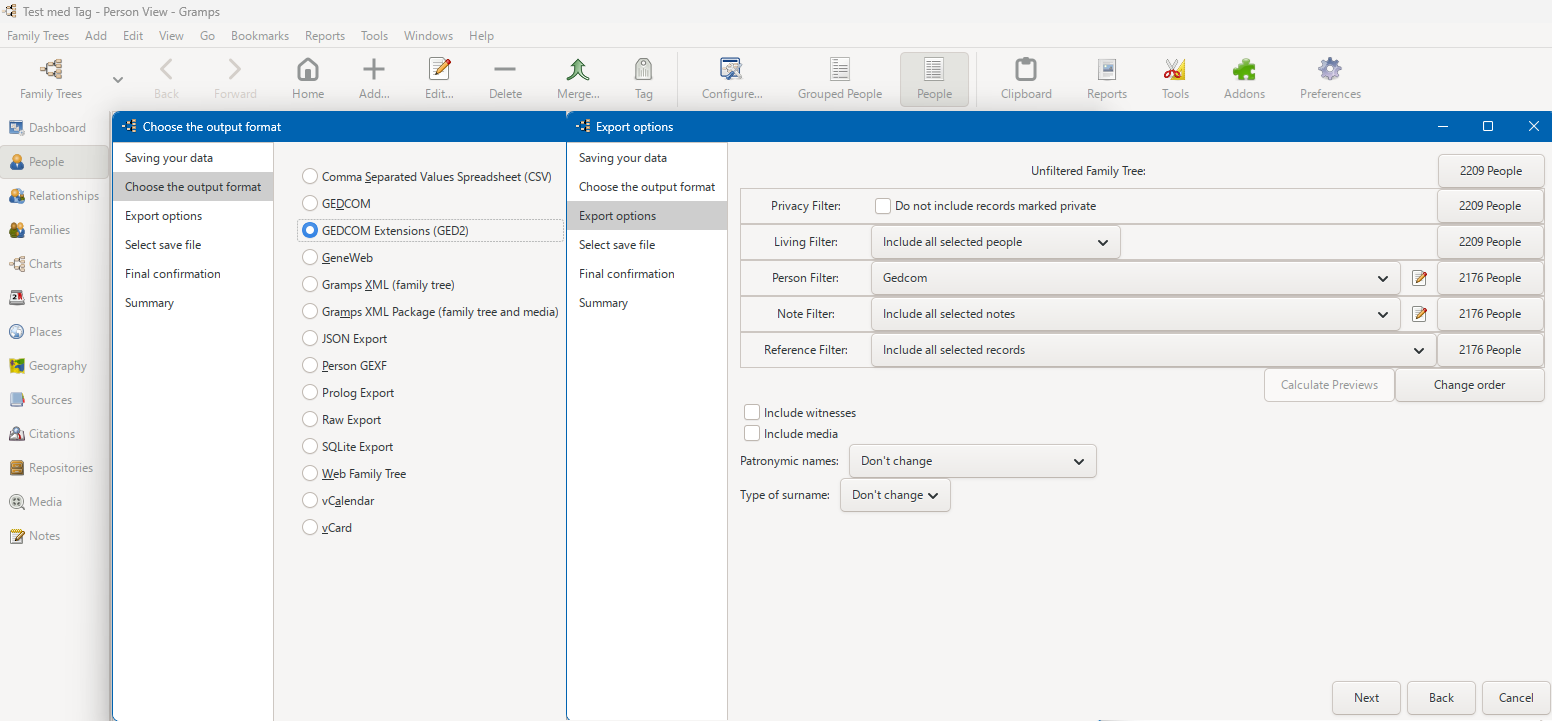
- Choose GEDCOM Extensions (GED2) as the export format.
- Under Person Filter , select Gedcom .
- Select Calculate Preview . The number of included people should now be significantly lower than the unfiltered family tree.
-
Save the
.ged2file in the same working folder asrelationship.py. - Close the family tree and Gramps.
The GEDCOM file is only read by the Python script. It is not modified.
3. Run the relationship report
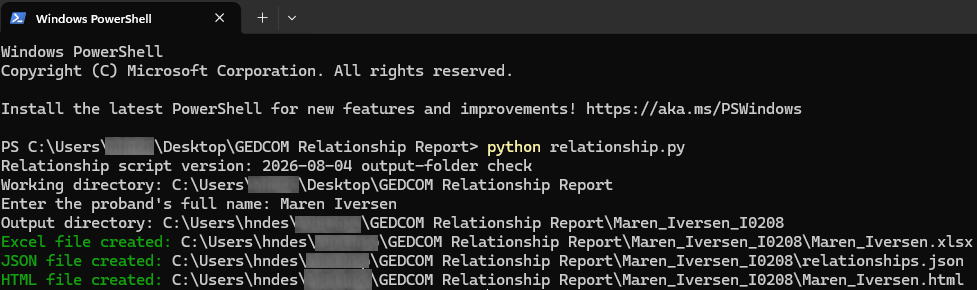
Open the working folder in a terminal and run:
python relationship.pyEnter the full and correct name of the person who should be used as the proband. If several people have the same name, choose the correct person from the displayed IDs.
The script creates a subfolder named
relationship-report-output
. The HTML, XLSX and JSON files inside it are named after the selected proband.
Output files
HTML
The HTML report contains Name , Relationship , Simplified path , Relationship path and Generation . It can be opened locally in a browser, with search available for name, relationship and generation.
XLSX
The XLSX report contains the same main report columns and can be searched and sorted with the normal functions in a spreadsheet application.
JSON
The JSON file contains
ID
,
Name
,
Relationship
,
SimplifiedPath
,
RelationshipPath
,
Generation
,
Occupation
,
Roles
and
Path
.
Roles
and
Path
are reserved for later use.
Relationship names
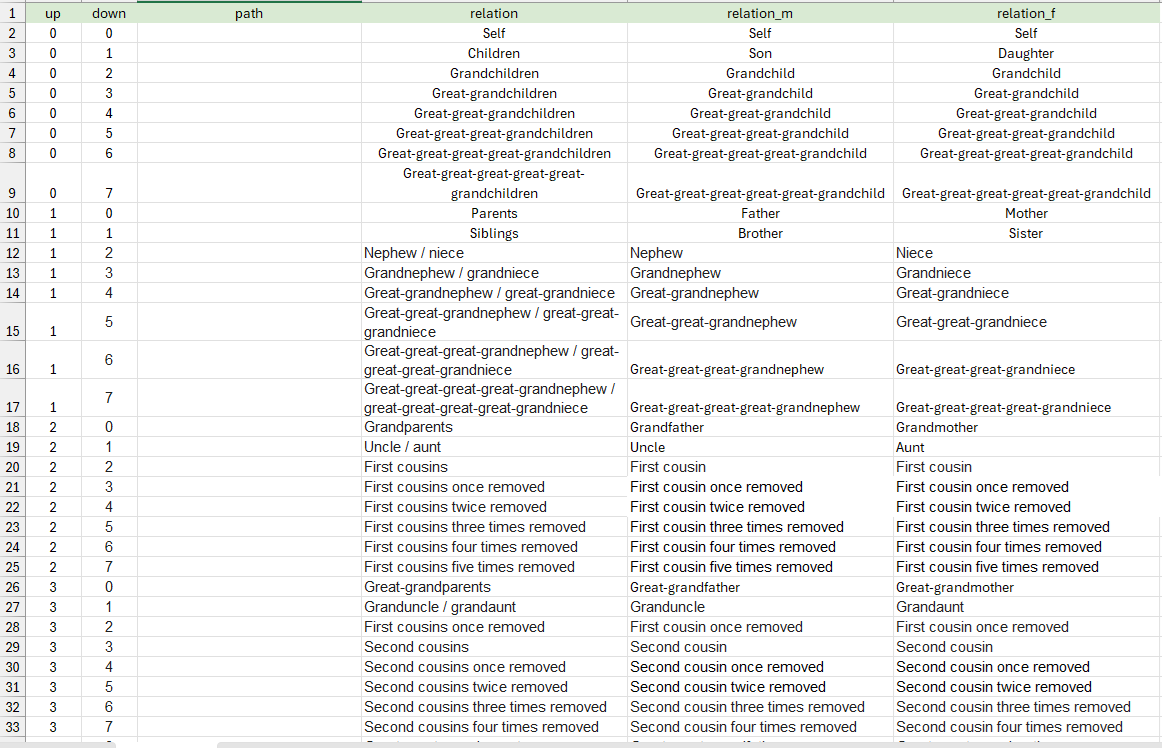
relationship_names.xlsx
contains the relationship names used by the script together with the corresponding relationship paths. It includes relationships such as children, parents, siblings, nieces and nephews, grandparents, uncles and aunts, and cousins.
Limitations and notes
-
Only one
.ged2file may be present in the working folder when the script is run. -
Additional GEDCOM files can temporarily be renamed, for example from
.ged2to.ged2.bak. - A proband cannot be selected by ID alone. Enter the full name first.
- Running the report again for a proband with the same name overwrites the previous files for that name.
- A GEDCOM file containing about 2,100 people typically takes approximately 1–2 seconds to process, depending on the computer.
For questions and troubleshooting, see Support & feedback .